
A Raspberry Pi is a versatile piece of hardware and can be used in a range of DIY projects, like this one, where you can learn how to turn your Rasberry Pi into a Wi-Fi access point.
Therefore, if you aren’t currently using your Raspberry Pi as a smart device, why not turn it into a wireless access point for your home? This project is easy to complete and requires only basic hardware and software knowledge.
We have outlined how to set up a Raspberry Pi as an access point below.
Hardware
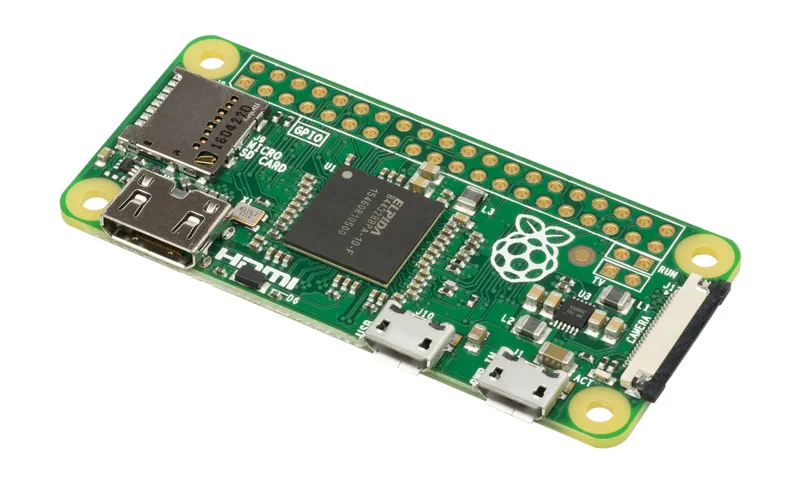
Technically, a number of Raspberry Pi devices could be used to set up an access point. In this case, and for this tutorial, we will use the Raspberry Pi 3 Model B, due to its built-in wireless features which remove the need for additional dongles.
You will need the following to set up the access point:
Raspberry Pi 3 Model B Power supply Monitor MicroSD card with NOOBs installed Mouse and keyboard Ethernet or Wi-Fi Internet connection Use a power supply which is approved for your Raspberry Pi model, as others may not provide sufficient power to the device for it to boot safely.
Together with all of this, your monitor, mouse, and keyboard are not needed if you have already set up your Raspberry Pi to be accessible from another device via SSH.
Now for the fun part...Setting-up the device
First, boot up the Raspberry Pi with an SD card inserted and install the latest version of the Raspbian operating system. Ensure that it is updated to the latest version by running the following commands in the terminal:
sudo apt-get update sudo apt-get upgrade
All the software required to set up the Pi as an access point can then be installed by running the following command:
sudo apt-get install dnsmasq hostapd
Then turn the software off temporarily and configure a static IP by running the following commands:
sudo systemctl stop dnsmasq sudo systemctl stop hostapd sudo nano /etc/dhcpcd.conf
This should open a file editor. Edit the end of the file to reflecting the following:
interface wlan0 static ip_address=192.168.4.1/24 nohook wpa_supplicant
Now run the following commands in order to restart the dhcpcd daemon and configure the DHCP server:
sudo service dhcpcd restart sudo mv /etc/dnsmasq.conf /etc/dnsmasq.conf.orig sudo nano /etc/dnsmasq.conf
Add the information below to the file that was just opened and save it before exiting.
interface=wlan0 # Use the require wireless interface – usually wlan0 dhcp-range=192.168.4.2,192.168.4.20,255.255.255.0,24h
This will provide IP addresses between 192.168.4.2 and 192.168.4.20 to all connected devices.
Open the hostapd file by typing the following command into the terminal:
sudo nano /etc/hostapd/hostapd.conf
Add the information below to the file before saving and exiting.
interface=wlan0 driver=nl80211 ssid=NameOfNetwork hw_mode=g channel=7 wmm_enabled=0 macaddr_acl=0 auth_algs=1 ignore_broadcast_ssid=0 wpa=2 wpa_passphrase=AardvarkBadgerHedgehog wpa_key_mgmt=WPA-PSK wpa_pairwise=TKIP rsn_pairwise=CCMP
Then run the following command:
sudo nano /etc/default/hostapd
Then replace the existing “#DAEMONCONF” line with the entry below:
DAEMON_CONF=”/etc/hostapd/hostapd.conf”
The access point is now set up and can be started by running the following commands and then rebooting:
sudo systemctl start hostapd sudo systemctl start dnsmasq
Now to connect it to the wonderful world called the Internet:
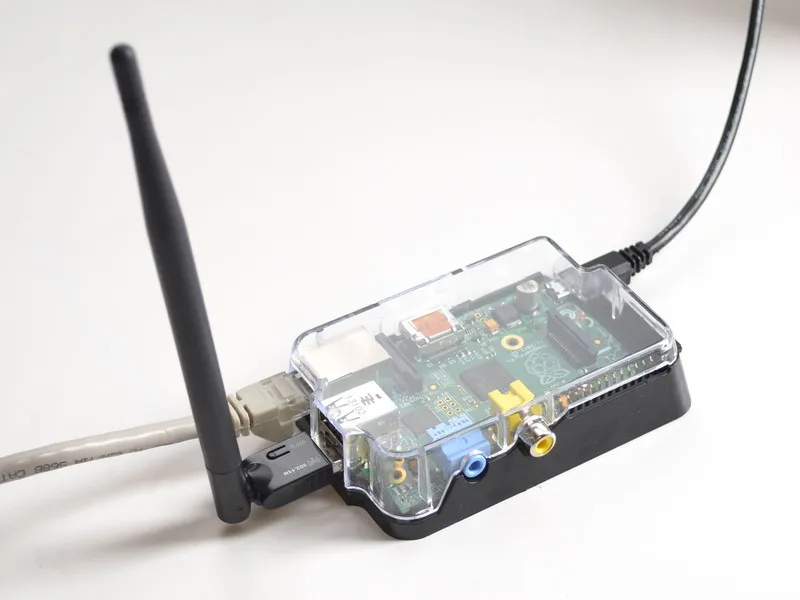
Now that the Pi is acting as an access point to the network, we need it to share its Internet connection to turn it into a Wi-Fi access point.
This can be done by bridging the Pi’s wireless and Ethernet connections.
First, run the following commands in order:
sudo apt-get install hostapd bridge-utils sudo systemctl stop hostapd sudo nano /etc/dhcpcd.conf
Add "denyinterfaces wlan0" and "denyinterfaces eth0" to the end of this file and save it.
Then run the commands below to add a new bridge:
sudo brctl addbr br0 sudo brctl addif br0 eth0 sudo nano /etc/network/interfaces
Add the following information to the end of the file to set up the bridge:
# Bridge setup auto br0 iface br0 inet manual bridge_ports eth0 wlan0
You can then add a "bridge=br0" line to the "hostapd.conf" file you set up earlier to enable the bridge and share your Internet connection across your Raspberry Pi.
This guide provides a brief overview of the commands required to set up a Raspberry Pi 3 Model B as an access point and does not delve into details regarding routing and network configuration.
For more detailed information on how to configure your Raspberry Pi access point or if you need to buy a Raspberry Pi, read the official Raspberry Pi documentation.
You can also watch the video below, which will show you another way to turn your Raspberry Pi into a Wi-Fi access point.