
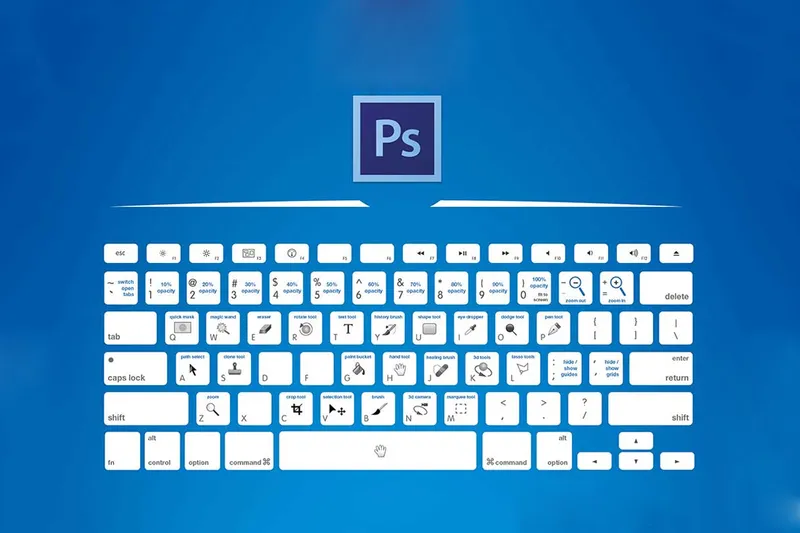
Adobe Photoshop is an incredible program for design work, editing images and digital artwork. But, using your mouse for each and every single tool or function in the program just wastes time!
Below are some Photoshop keyboard shortcuts you should know. Learn them because they'll shave off hours of your time every week by employing these alternatives.
Photoshop Keyboard Shortcuts: Move Tools
- Zoom Tool – Hit the letter "Z" on your keyboard
- Zoom Out – Hold the Alt/Option key
- Fit to Screen – Command/Ctrl 0
- Hand Tool – Move around the image while zoomed in - Hold the spacebar
- Rotate Your Image – Hit the letter "R" on your keyboard, then click and drag your mouse
- Rotate in 15-degree increments – Make sure your rotate tool (R) is selected, then hold down the Shift key and drag your mouse
Photoshop Keyboard Shortcuts: General Tips & Shortcuts
- Unlock your background layer – Double click your background layer and hit the "enter" key, or simply click on the lock icon on your background layer.
- Rulers – Command/Ctrl R
- Create Guides – Click and drag from the rulers while they are visible. This works both on the vertical and horizontal axis
- Hide/Show Guides – Command/Ctrl H
- Undo – Command/Ctrl Z (quick tip: use this keyboard shortcut over and over again to toggle your last history state)
- Multiple Undos – Command/Ctrl Alt/Opt Z
- Gradient Tool – Hit the letter "G" on your keyboard
- Gradient Tool with straight gradient – While the gradient tool is selected, hold "Shift", then click and drag
- Crop Tool – Hit the letter "C" on your keyboard (Quick Tip: make sure to uncheck "Delete cropped pixels")
Photoshop Keyboard Shortcuts: Brush Tool
- Brush – Hit the letter "B" on your keyboard
- Make brush tool bigger – Hit the ] key on your keyboard (right bracket key)
- Make brush tool smaller – Hit the [ key on your keyboard (left bracket key)
- Brush Resize (PC) – Right Click Alt Drag left or right
- Brush Softness (PC) – Right Click Alt Drag up or down
- Brush Resize (Mac) – Command Option Drag left or right
- Brush Softness (Mac) – Command Option Drag up or down
- Brush settings – Simply right-click while you have the brush tool selected. Hit the "enter" key to exit this panel
- Sample colours while using the brush tool – Hold the Option/Alt key to temporarily switch to the eyedropper tool
Photoshop Keyboard Shortcuts: Colour
- Eyedropper Tool – Hit the letter "I" on your keyboard
- Toggle Foreground/Background Colour – Hit "X" key on your keyboard
- Default Colours – Hit "D" on your keyboard
Photoshop Keyboard Shortcuts: Selection Tools
- Magic Wand Tool – Hit the letter "W" on your keyboard
- Add to Selection – Hold the Shift key while using a selection tool
- Marquee Selection Tool – Hit the letter "M" on your keyboard
- Deselect – Command/Ctrl D
- Lasso Tool – Hit the letter "L" on your keyboard
- Pen Tool – Hit the letter "P" on your keyboard
- Load Pen Path Selection – Once you have a closed path, hit Command/Ctrl Enter to load the selection
- Create Bezier Curve – With the pen tool selected (letter P), click to add an anchor point, then click and drag to add another
Photoshop Keyboard Shortcuts: Retouching Tools
- Healing Brush Tool – Hit the letter "J" on your keyboard
- Toggle between Healing Brush Subsets – Hold Shift hit the letter "J" on your keyboard
- Healing Brush sample point – Hold Option/Alt, then click to choose a sample point
- Clone Stamp Tool – Hit the letter "S" on your keyboard
- Clone Stamp Tool sample point – Hold Option/Alt, then click to choose a sample point
Photoshop Keyboard Shortcuts: Transform Tools
- Free Transform – Command/Ctrl T
- Scale Proportionately – Hold the "Shift" key when you're in the free transform mode
- Scale from the centre point of the image – Hold Shift Option/Alt
Take a look at the video below by the YouTube channel, Fstoppers, on Essential Keyboard Shortcuts That Every Photoshop User Should Know...